


Continuation 2 of 3 · From basics to automation
Weekly schedules, date exceptions and solar events in the building.
Fastighet Solbacka, Office 201. Two individually controllable fixed-white DALI luminaires. Prepared scenes are scheduled; no new wiring is taught.
i. A timer decides when a scene runs
The scene stores the lighting state. A timer starts and ends it at set times. Start with weekdays 07:00-17:00 in Office 201.
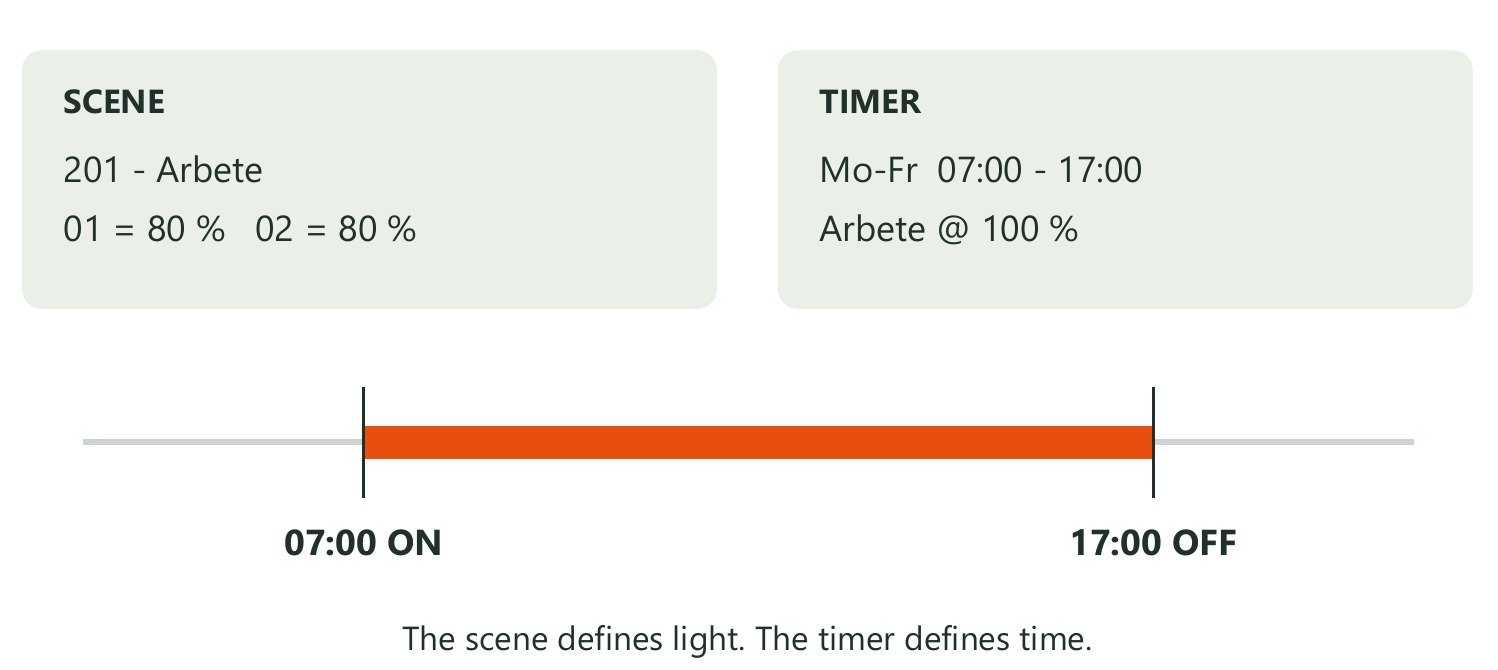
- Check the scenes: 201 - Arbete includes both luminaires at 80%. 201 - Släckt includes both at 0% for the date exception.
- Test scene contents using the scene guide. Enable Use control hierarchy under More → Network setup → Control options and save with Done.
- A time-based scene selects its contents when activated. It is different from a timer that starts at a clock time.
1. Open Timers and create a schedule
Open the correct network. Timers is under More; the scenes themselves are in Scenes.

- Open Fastighet Solbacka → More → Timers . Some versions also call this function Schedules.
- Tap Edit at the top right, then + at the top left. The new editor is titled Timer.
- Open Switches ON . Set its starting weekdays and time on the next page. Do not save the whole timer yet.
2. Select weekdays and a 07:00 start
Weekdays and clock time are separate choices. Confirm that Saturday and Sunday are not selected.

- In Switches ON , choose Weekdays . Select Mo, Tu, We, Th and Fr. Deselect Sa and Su.
- Choose Time and set 07:00 . Do not use Sunrise or Sunset for this fixed weekly schedule.
- Tap Done in Switches ON to return to Timer. Check its summary shows the selected weekdays at 07:00.
3. Set the end, scene and Enabled
End the timer at 17:00 on the same weekdays. Keep the scene at 100% relative level so Arbete retains its stored 80%.

- Open Switches OFF : Weekdays, Mo-Fr, Time 17:00 . Tap Done to return to Timer.
- Tap Add a scene and select 201 - Arbete . Check its relative level is 100% .
- Set Fade time 10 s . Leave Override presence and Removes manual control off. Turn Enabled on.
- Review ON/OFF, scene and Enabled. Tap Done in Timer. Finish list editing with Done if still shown.
i. Fixed end, After and fading
After is a duration from the timer start. Fade time is the lighting transition. Neither is a sensor linger time.

- Fixed OFF 17:00 follows the clock. Alternatively, Switches OFF → After ends after a duration from ON, for example 1 h.
- With ON 07:00 and Fade 10 s, the scene level is reached at 07:00:10. At OFF 17:00, release starts then, not 10 s earlier.
- Keep the base schedule unchanged now. For a separate After exercise, open the timer, scroll to the bottom and choose Save as copy . Check its settings.
4. Test with Refresh in the active interval
A newly saved 07:00 timer does not automatically start at 11:00. Refresh can bring schedules to their current state.
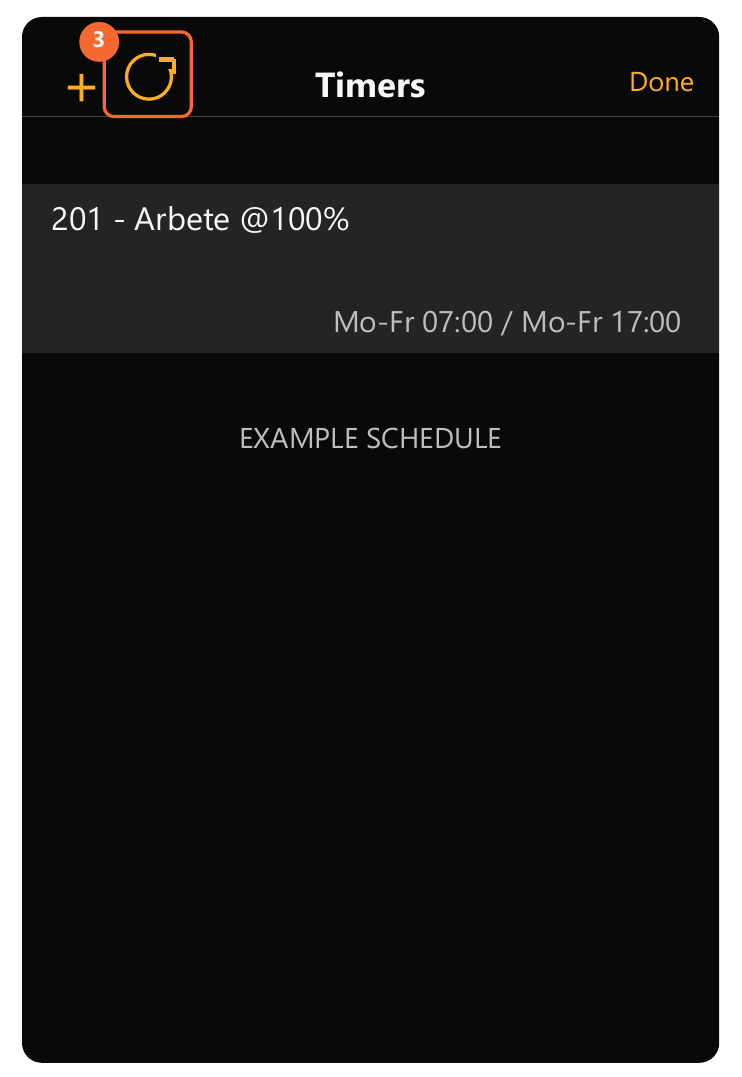
- Test during today's weekday 07:00-17:00 interval. Check Enabled, scene, network time and time zone.
- Open the Kontor 201 group in Luminaires. Tap @ and confirm Resume automation to release its manual control.
- Open More → Timers → Edit and tap the Refresh arrow beside +. Also check other affected schedules in the network.
- Watch both physical luminaires reach Arbete after fading. Test release with a separate short test copy as described later.
5. Extra opening on a specific date
The weekly timer does not start at weekends. Add a separate date example for Saturday 24 October 2026, 09:00-12:00.
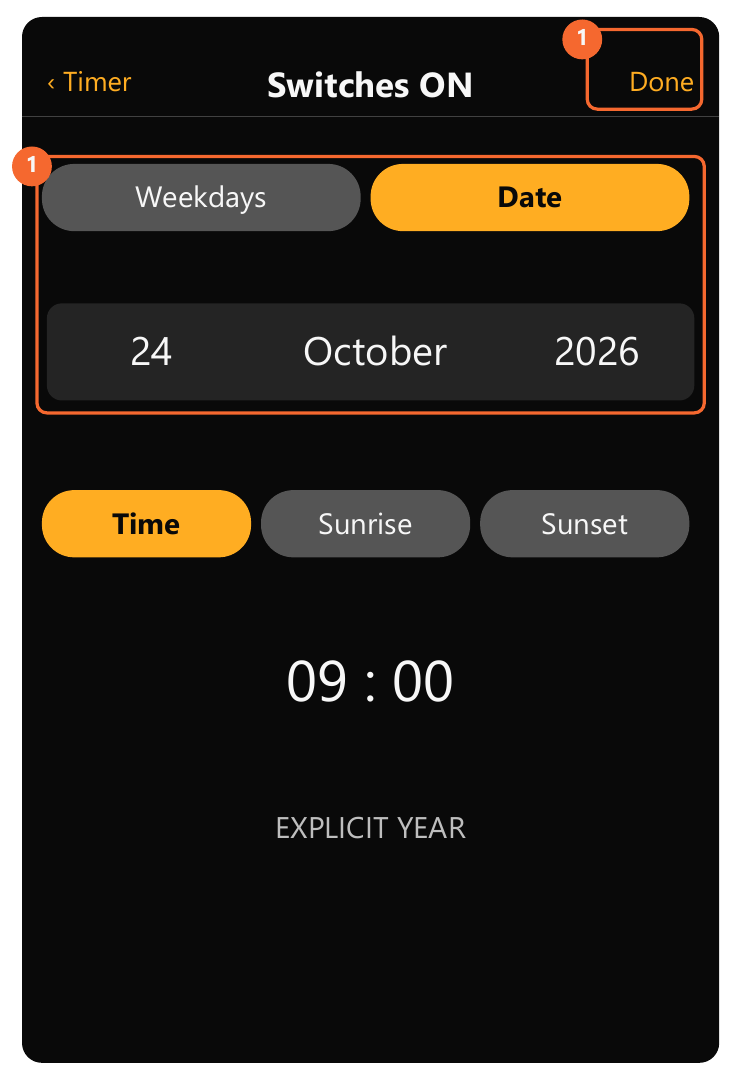
- Create a new timer via More → Timers → Edit → +. In Switches ON , choose Date , 24 October 2026 , Time 09:00 → Done.
- In Switches OFF : Date, the same date, Time 12:00 → Done. Check both years; do not use **** for this one-off date.
- Select 201 - Arbete 100% , Fade 10 s and Enabled on. Leave both override options off. Save Timer with Done.
6. Closed weekday: an active date exception
Friday 30 October 2026 is closed in this exercise. An active 0% scene can outrank the normal weekday timer.
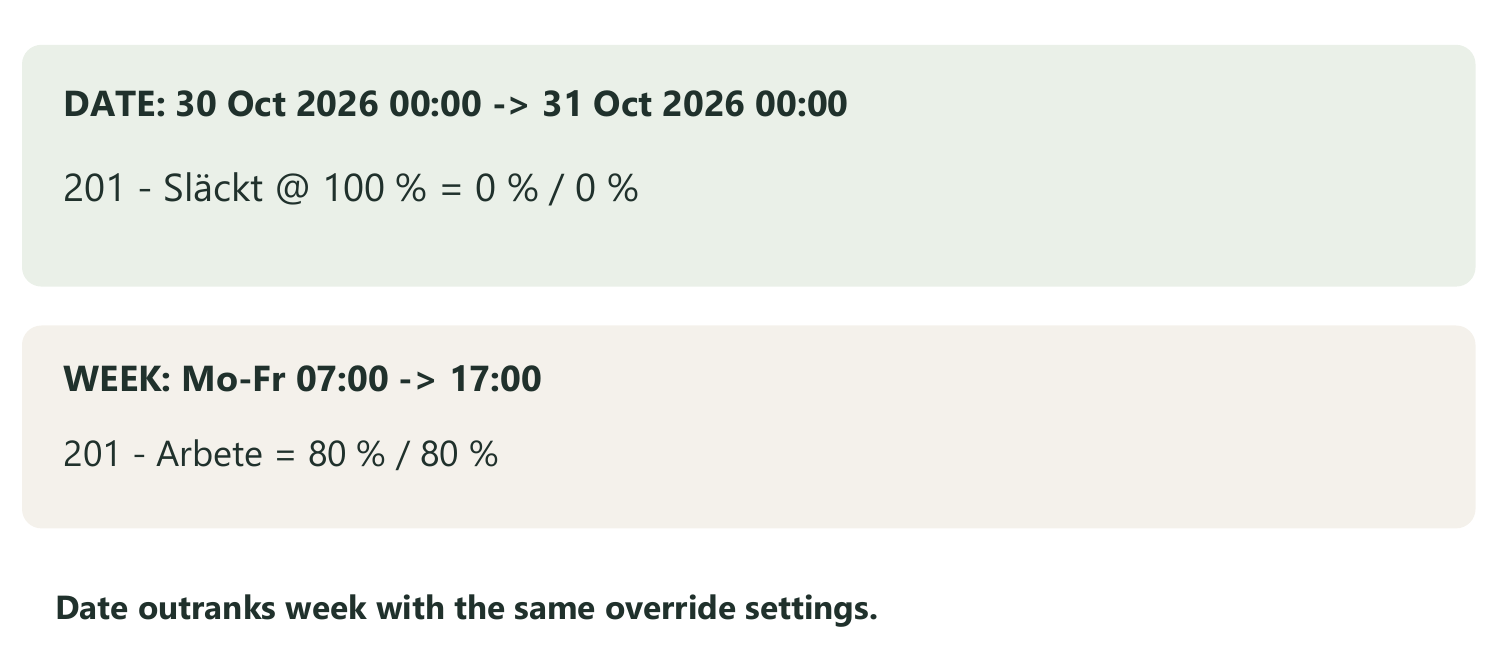
- Check 201 - Släckt includes both luminaires at 0%, using the scene guide method. Excluding a luminaire is not the same as 0%.
- Create a date timer: ON 30 October 2026 00:00 , OFF 31 October 2026 00:00 . Select Släckt 100%, Fade 10 s, Enabled on; both override options off. Save Done.
- With matching override settings, the date timer outranks the weekly timer. Test and record start, end and affected luminaires.
7. Astro: before sunset, after sunrise
Test astro separately from other schedule exercises. Location and time zone must describe the real building, not the installer's temporary position.

- Disable earlier exercise timers using Enabled. Check More → Network setup → Network settings : correct Location and Time zone.
- Create a new timer. Switches ON → Weekdays : Mo-Su, Sunset → Before → 0 h 30 min . Save Done.
- Switches OFF → Weekdays : Mo-Su, Sunrise → After → 0 h 15 min . Save Done.
- Select 201 - Arbete 100% , Fade 10 s, Enabled on. Leave Override presence/Removes manual control off. Save the whole Timer with Done.
8. Understand offsets and run a short test
The diagram's solar times are fictional examples. Do not copy them as fixed clock times in the astro settings.

- Example: sunset 18:00 with Before 30 min gives ON 17:30. Next sunrise 07:00 with After 15 min gives OFF 07:15.
- Short test: disable the original. Open the astro timer, scroll to the bottom and choose Save as copy . Set ON Time a few minutes ahead, OFF After 1 min, Enabled on. Save.
- Resume automation for the group and observe start/release. Disable the test copy, enable the original and recheck its astro settings. Use Refresh for the current schedule state.
9. Return from manual control
A button press or manually recalled scene can outrank the timer. The schedule is not necessarily faulty.

- Open More → Network setup → Control options . Check Use control hierarchy and Manual control behaviour .
- Timeout if automation waiting can release after the configured timeout when automation waits. Don't timeout retains manual priority. Record actual day/night timeouts; do not assume defaults.
- Save changes with Done. While the timer is active, manually select 201 - Möte . Check that its scene changes the lights.
- Open the Kontor 201 group in Luminaires. Tap @ → Resume automation . Observe the active underlying control returning.
10. Sensors and the two timer overrides
Choose priority to match the required function. Timer, sensor and manual control are not three independent on/off switches.

- Open the timer. Override presence off : presence can outrank a normal timer. On raises priority above presence, not generally above manual control.
- If using Override presence, configure both Switches ON and OFF . Lower active control can return at OFF.
- Removes manual control on clears manual control when the timer starts. With a selected scene it affects that scene's luminaires; without one it affects the whole network.
- Leave both off and save Done. Test project-specific return separately. An active absence scene can also outrank a normal timer.
11. After power loss: time before auto-start
Stored schedules and valid network time are different things. A powered node can preserve time; a fully unpowered network can lose it.

- Under Control options , enable Activate timers on startup if the project should restore the current timer state at power-up. Save Done.
- This requires the luminaire to receive network time . After total power loss, connect the Casambi app with internet to the correct network to resynchronise time/date.
- Check today's schedule, location and time zone. Resume automation and use Refresh if needed. Test restart as a planned functional check.
- Hand over times, date exceptions, Enabled/override settings, manual timeout and test results to the building's responsible person.
Next steps
Sources and version information
Reviewed 17 October 2026. Menu names and available functions may differ between app versions, products and profiles. Verify the function in the actual installation during commissioning.